

Getting around Settings
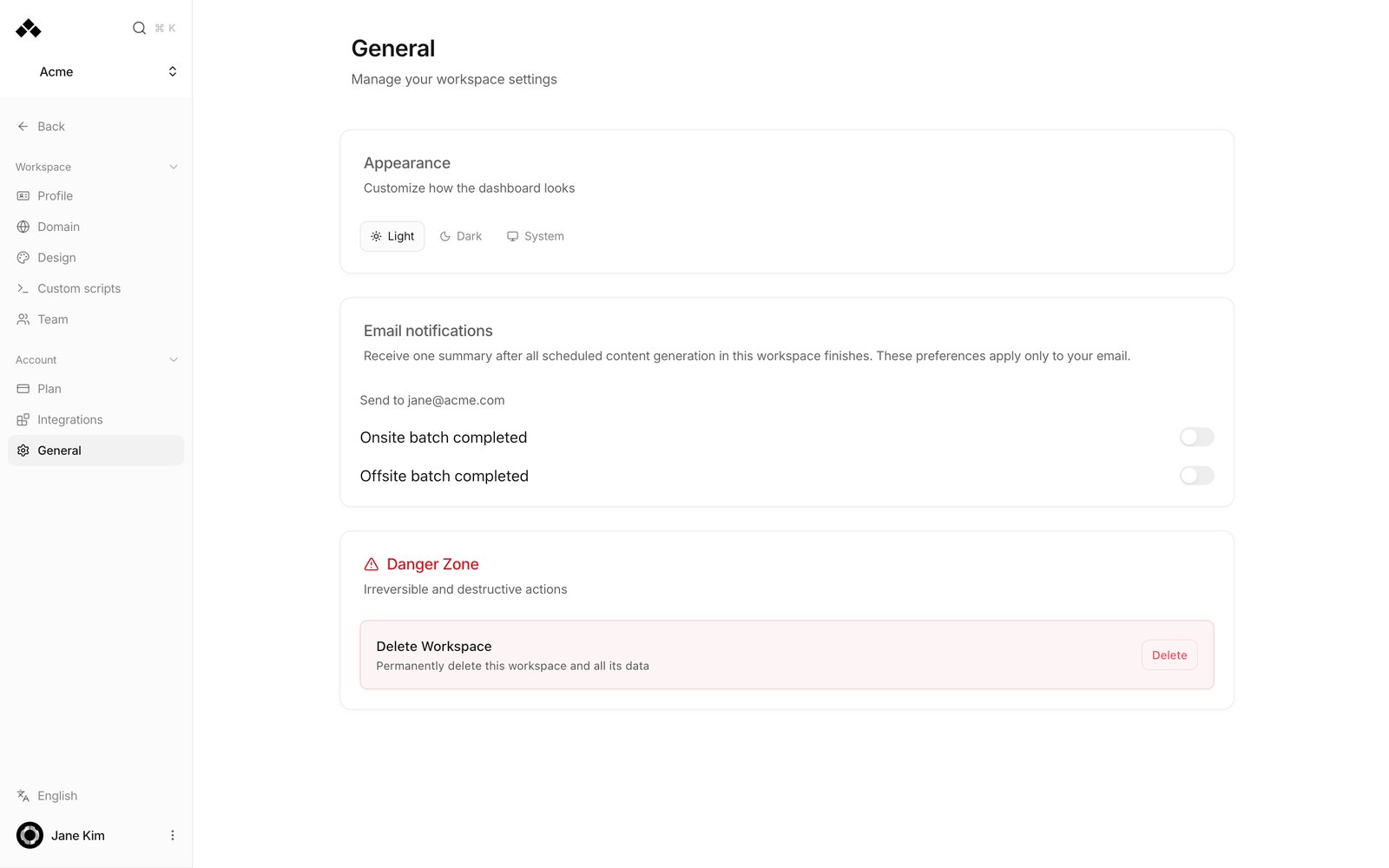
Open Settings in the left sidebar and the navigation switches to two groups. Workspace holds Profile, Domain, Design, Custom scripts and Team — everything that describes this brand and its pages. Account holds Plan, Integrations and General, which cover your subscription, connected services and your own dashboard preferences. Back at the top returns you to the dashboard.What’s on the screen
Email notifications sends you one summary after all scheduled content generation in this workspace finishes, once for on-site pages and once for off-site articles, according to the switches. Each change confirms with “Notification preferences saved”. If the card can’t load, press Retry.
The display language is no longer on this screen. Click the language row at the bottom of the left sidebar (it reads English or 한국어) to switch; it applies to your account only. The language your pages are written in comes from Primary Language on Profile.
Danger Zone
What you see depends on your role.Leave Workspace (members)
Shown to members who are not admins. Leave asks “Leave [workspace]?” and, once confirmed, ends your access. You need a new invitation to rejoin. The last remaining admin cannot leave.Delete Workspace (admins)
Shown to admins. It permanently removes the workspace and everything in it.How to use it
1
Switch theme
Pick Light, Dark or System under Appearance. It applies immediately.
2
Choose your summary emails
Under Email notifications, turn on Onsite batch completed and/or Offsite batch completed. They go to the address after Send to.
3
Leave the workspace
Danger Zone → Leave → confirm. If you are an admin, promote someone else first.
FAQ
Where did the language setting go?
Where did the language setting go?
To the bottom of the left sidebar. Click the row that reads English or 한국어 and the dashboard switches; it confirms with “Display language updated” and applies to your account only.
Will my teammates get the same emails?
Will my teammates get the same emails?
No. The switches here are for your own address only. Each member sets their own.
Does this change the language of generated pages?
Does this change the language of generated pages?
No. That comes from Primary Language on Profile.
I don't see Delete Workspace.
I don't see Delete Workspace.
Only admins do. Members see Leave Workspace instead.
Can a deleted workspace be restored?
Can a deleted workspace be restored?
No. Pages and analytics are permanently removed.
I'm the last admin and can't leave.
I'm the last admin and can't leave.
Promote someone to Admin on Team first.
Related
Team
Manage members and roles.
Plan
Subscription and limits.
Profile
Brand information and default language.
Dashboard tour
A quick pass over every screen.