

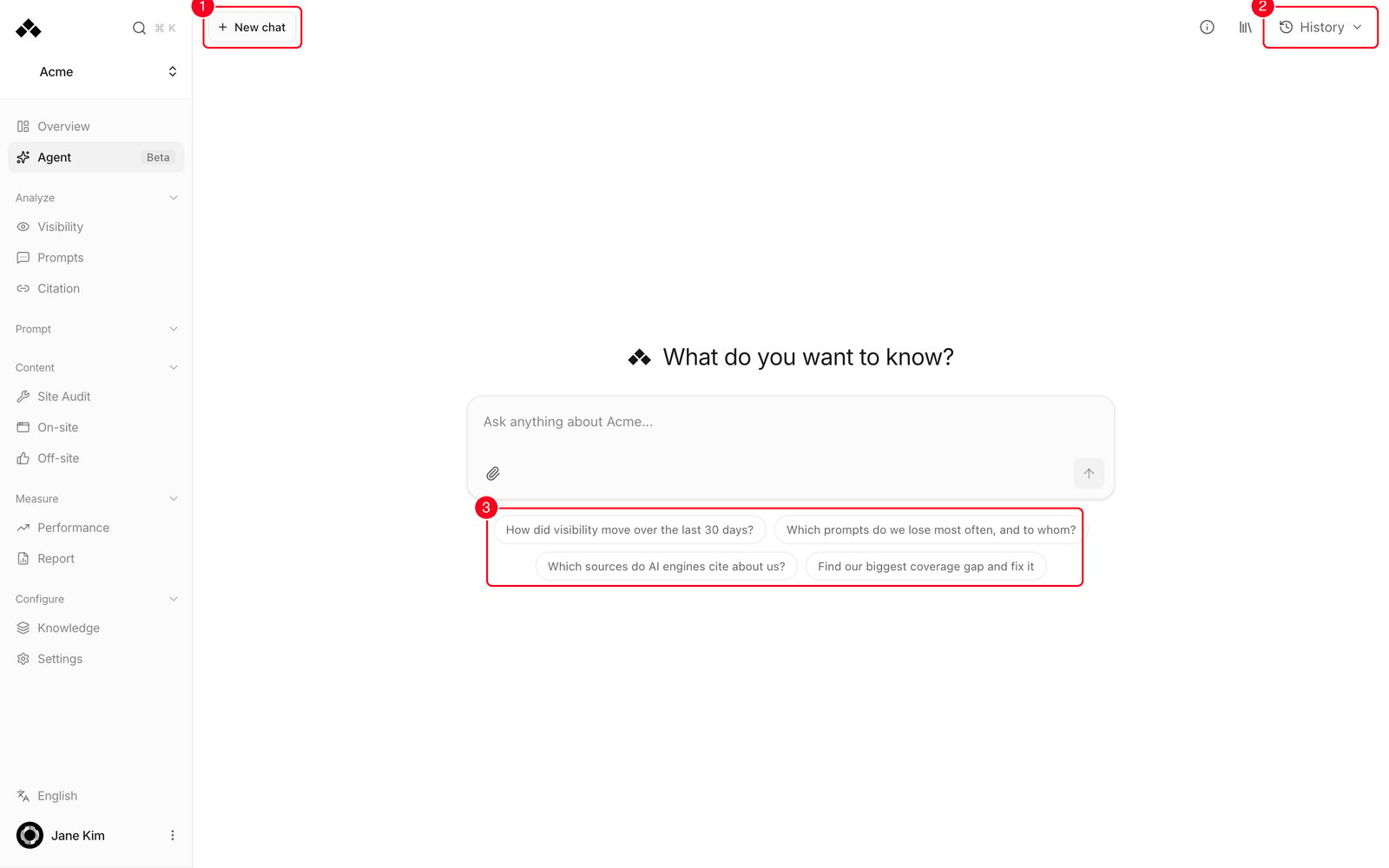
- New chat — start a fresh conversation.
- History — open your saved conversations.
- Starter questions — click one and it sends immediately.
What’s on the screen
Toolbar- New chat — opens an empty conversation. A thread you open but never write in is not saved to History.
- About Agent — a small info button. The first time you open the page it pops up on its own with one line about what the agent reads; Got it closes it.
- Saved analyses — a bookmark icon that opens the right-hand panel with the answers you or your teammates saved. See Saving and sharing an answer.
- History — opens the right-hand panel with your conversations, newest first, and a Search conversations box. Each is named automatically from your first question; use the row’s menu to Rename, Pin (pinned ones show a dot and stay on top), or Delete. Thirty are shown at a time; Load more reveals the rest.
- The placeholder reads “Ask anything about [your workspace name]…”.
- Enter sends. Shift+Enter makes a new line.
- Attach files lets you drop in up to five files (PDF, Word, Excel, CSV, text or Markdown). Their text is read and sent along with your question.
- While an answer is streaming, the send button becomes a stop square and “Working…” appears above the field.
- You can keep typing during an answer. Extra messages queue under “Sends when this answer finishes” and send by themselves. Each queued message has Edit and Remove.
What it reads, and what it can do
How approval works
1
Ask for the change
Say it plainly: “re-target the prompt panel for this topic”, “publish this page”, “update the brand profile”.
2
Read the Review changes card
The agent stops and shows a card headed Review changes. Each proposed change has its own checkbox and names what it touches. Under it, every field that will be written is shown side by side as Current and Proposed, so you can see exactly what moves. If several changes were proposed at once they all sit in the same card.
3
Check the warning line
Each change carries a one-line note on its effect. Publishing says “Changes the live site. Review the target and content before applying.” Starting an analysis says it “runs a full workspace analysis, spends budget, and may take several minutes.” Generating an image warns it uses generation budget. Ordinary edits say “Applies the proposed changes to this workspace.”
4
Apply selected or Discard
Untick anything you don’t want, then press Apply selected; the number in the button is how many will run. Unchecked proposals are declined. Discard declines all of them. After applying, the agent reads the record back and reports what actually happened. Declined changes are not re-proposed; the agent asks what you’d want instead.
Saving and sharing an answer
1
Save it
Press Save analysis under the answer. A toast says Analysis saved and the Saved analyses panel opens with it at the top. Unread saved items show a dot.
2
Open it
Click a saved item to open it in a dialog: the answer, when it was saved, and links to the screens it was built from. The line “Dates below describe the saved answer, not a new measurement” is a reminder that a saved analysis is frozen at the moment you saved it; to see today’s numbers, ask again or use Check latest data in a live conversation.
3
Share or add to Report
Share with workspace lets signed-in members of this workspace read it, and Copy link gives you the address to send them. They see it read-only. Stop sharing takes it back. Add to Report puts it at the top of your Report under Saved Agent analyses; Remove from Report takes it out again.
Questions that work well
The agent is instructed to lead with the answer and put the evidence after it, always state the time window as a number, use tables for comparisons, and say plainly when there’s no data instead of guessing. It replies in whatever language you write in.- “How did mention rate move over the last 30 days? Break it down by topic in a table.”
- “Which 10 prompts do we lose most often, and which brands get named instead?”
- “Show me the top 10 source domains ChatGPT cites about us.”
- “List the on-site pages published last week and whether each one is indexed.”
- “Find the topic where we’re furthest behind competitors, and suggest what page to write.”
- “Update the brand profile so prices are always written in both KRW and USD.”
- “Add five prompts about free trials to this group.”
- “Which five pages gained the most citations versus last month?”
Limits
- One answer runs at most 80 internal steps. A very sprawling request can end before finishing everything, so ask in smaller pieces.
- A question that walks several datasets in sequence can take tens of seconds. A simple lookup is quick.
- It is locked to the one workspace you’re in. It can’t read or change another.
- History lists 30 conversations per page; Load more shows older ones.
- Attachments: up to 5 files per message, and only their text is read (images inside a PDF are ignored).
Status messages
FAQ
Can my teammates see my chats?
Can my teammates see my chats?
Conversations are private to your own login. A saved analysis is private too until you press Share with workspace; then signed-in members of this workspace can read it, but not change it.
Will it change things behind my back?
Will it change things behind my back?
No. Every change is proposed in a Review changes card and only runs when you press Apply selected.
How do I know what a change will actually do?
How do I know what a change will actually do?
The card shows each field as Current and Proposed. Anything that spends budget or publishes to your live site carries an explicit warning line.
What if I press Discard?
What if I press Discard?
Nothing happens. The agent moves on and won’t re-propose the same change; it’ll ask what you want different instead.
Can I apply only some of the proposed changes?
Can I apply only some of the proposed changes?
Yes. Untick the ones you don’t want before pressing Apply selected. The unticked ones are declined.
Can I close the tab while it works?
Can I close the tab while it works?
Yes. The run continues, and reopening that conversation rejoins it in progress.
Can I type while it's answering?
Can I type while it's answering?
Yes. Your message queues and sends automatically when the answer finishes. Until then you can Edit or Remove it.
Does it answer in Korean?
Does it answer in Korean?
Yes. It replies in whatever language you write in.
Can it see our other brands?
Can it see our other brands?
No. It’s limited to the workspace you’re in.
Related
Overview
The workspace at a glance. Agent is where you ask it anything.
Report
Where saved analyses appear when you add them to the report.
Editing prompts
How to change the prompt panel from chat, and what to watch for.
Knowledge
The brand documents the agent reads and can update.