> ## Documentation Index
> Fetch the complete documentation index at: https://docs.anymorph.ai/llms.txt
> Use this file to discover all available pages before exploring further.
# Agent
> A chat that reads your workspace's real records — and always asks before it changes anything
**Agent** is a chat window where you can ask anything about your own workspace: visibility, prompts, citations, pages, traffic. It answers from the records in this workspace, not from a guess.
It can also do work — change the prompt panel, edit and publish pages, update your brand documents and generation rules, add knowledge, start an analysis or publish pages. Anything that changes the workspace **stops and asks you first**.
Answers you want to keep can be saved as an analysis, shared with the workspace, or added to your **Report**.
The sidebar shows a **Beta** badge next to **Agent**. It's shipped and usable, and it's still changing.
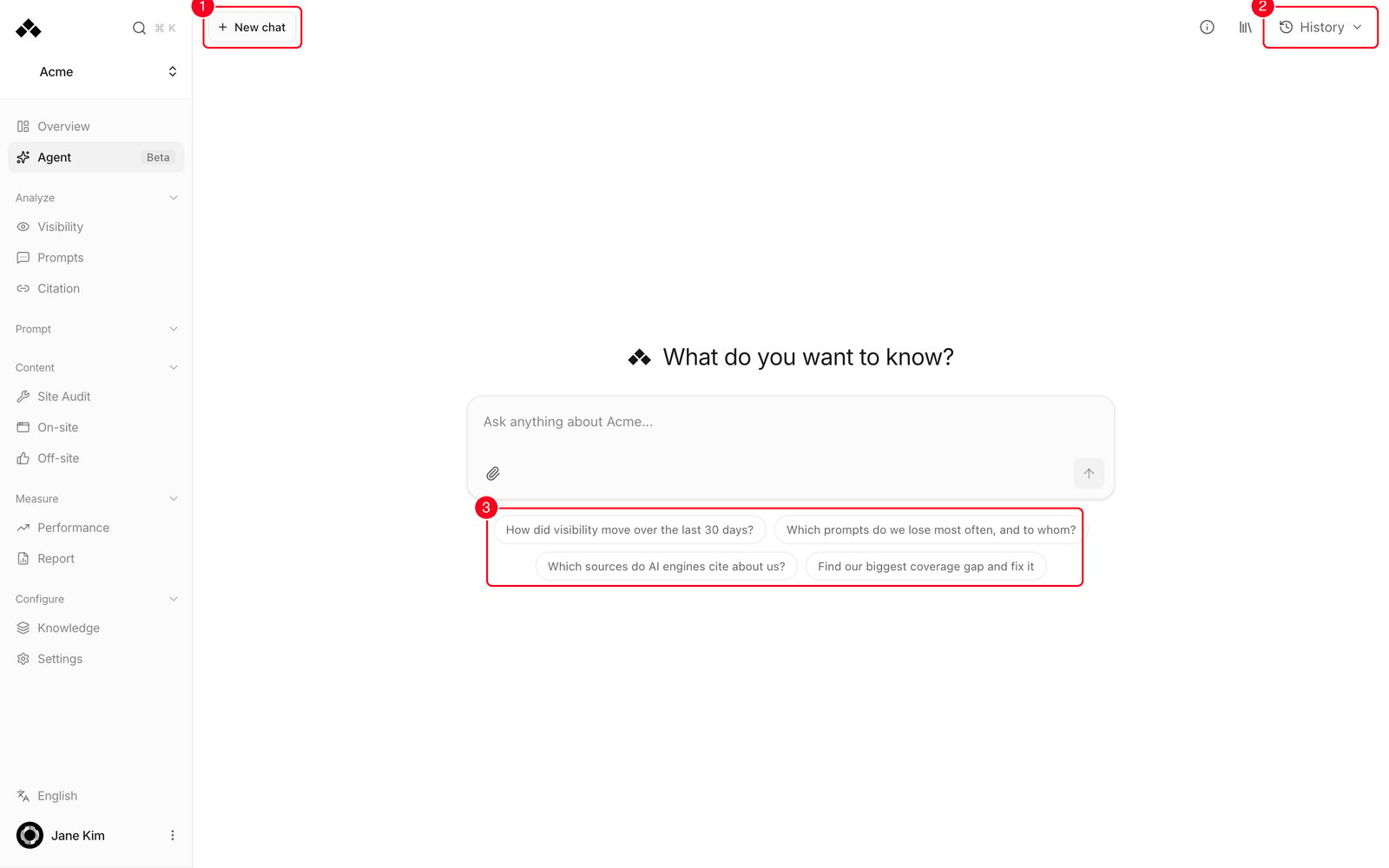 1. **New chat** — start a fresh conversation.
2. **History** — open your saved conversations.
3. **Starter questions** — click one and it sends immediately.
## What's on the screen
**Toolbar**
* **New chat** — opens an empty conversation. A thread you open but never write in is not saved to History.
* **About Agent** — a small info button. The first time you open the page it pops up on its own with one line about what the agent reads; **Got it** closes it.
* **Saved analyses** — a bookmark icon that opens the right-hand panel with the answers you or your teammates saved. See [Saving and sharing an answer](#saving-and-sharing-an-answer).
* **History** — opens the right-hand panel with your conversations, newest first, and a **Search conversations** box. Each is named automatically from your first question; use the row's menu to **Rename**, **Pin** (pinned ones show a dot and stay on top), or **Delete**. Thirty are shown at a time; **Load more** reveals the rest.
**Start screen**
An empty thread shows **"What do you want to know?"** and four starter questions: how visibility moved over the last 30 days, which prompts you lose most often and to whom, which sources AI engines cite about you, and finding your biggest coverage gap. Click one and it sends.
**Conversation**
Your messages sit right-aligned in a grey bubble. The agent's replies are on the left, as formatted text with headings, lists, tables and links. Before anything is written you'll see a shimmering **"Thinking..."**, then a row for each thing the agent is reading, with a short summary of what it found.
Under every finished answer there is a small row of actions: **Copy answer**, **Save analysis**, and a **⋯** menu with **Evidence** (which screens and date ranges the answer was built from), **Investigate the cause**, **Prepare improvements** and **Check latest data**. The last three send a ready-made follow-up question for you.
**Message box**
* The placeholder reads **"Ask anything about \[your workspace name]..."**.
* Enter sends. Shift+Enter makes a new line.
* **Attach files** lets you drop in up to five files (PDF, Word, Excel, CSV, text or Markdown). Their text is read and sent along with your question.
* While an answer is streaming, the send button becomes a stop square and **"Working..."** appears above the field.
* You can keep typing during an answer. Extra messages queue under **"Sends when this answer finishes"** and send by themselves. Each queued message has **Edit** and **Remove**.
## What it reads, and what it can do
| Category | What that covers |
| --------------------------------------------- | ----------------------------------------------------------------------------------------------------------------------------------------------------------------------------------------------------------------------------------------------------------------------------------------------------------- |
| Reads without asking | Your visibility numbers and trends, citations, traffic summary, prompts and prompt diagnostics, pages with their content and research, catalog products, brand profile and rules, knowledge search, run status |
| Reads without asking, but costs time or money | Web search and page fetches, keyword data, live search-result checks, Google Search Console performance and URL inspection, competitor-gap lookups. It is instructed to use your own records first |
| Always needs your approval | Prompt panel edits; creating, editing, publishing or rebuilding on-site pages and linking products to them; catalog product changes; brand profile, global rules and design guideline changes; knowledge entries and research sources; starting a visibility analysis or a publish run; generating an image |
| Cannot do at all | Workspace status and domain administration, destructive catalog deletes, indexing work outside this workspace, and running arbitrary code. Those stay with Anymorph operators |
## How approval works
Say it plainly: "re-target the prompt panel for this topic", "publish this page", "update the brand profile".
The agent stops and shows a card headed **Review changes**. Each proposed change has its own checkbox and names what it touches. Under it, every field that will be written is shown side by side as **Current** and **Proposed**, so you can see exactly what moves. If several changes were proposed at once they all sit in the same card.
Each change carries a one-line note on its effect. Publishing says *"Changes the live site. Review the target and content before applying."* Starting an analysis says it *"runs a full workspace analysis, spends budget, and may take several minutes."* Generating an image warns it uses generation budget. Ordinary edits say *"Applies the proposed changes to this workspace."*
Untick anything you don't want, then press **Apply selected**; the number in the button is how many will run. Unchecked proposals are declined. **Discard** declines all of them. After applying, the agent reads the record back and reports what actually happened. Declined changes are not re-proposed; the agent asks what you'd want instead.
Approving a publish or an analysis starts real work outside the chat that takes minutes. Results appear on [On-site](/dashboard/on-site), [Visibility](/dashboard/visibility) and [Performance](/dashboard/performance). You can ask the agent how a run is going.
## Saving and sharing an answer
Press **Save analysis** under the answer. A toast says **Analysis saved** and the **Saved analyses** panel opens with it at the top. Unread saved items show a dot.
Click a saved item to open it in a dialog: the answer, when it was saved, and links to the screens it was built from. The line *"Dates below describe the saved answer, not a new measurement"* is a reminder that a saved analysis is frozen at the moment you saved it; to see today's numbers, ask again or use **Check latest data** in a live conversation.
**Share with workspace** lets signed-in members of this workspace read it, and **Copy link** gives you the address to send them. They see it read-only. **Stop sharing** takes it back. **Add to Report** puts it at the top of your [Report](/dashboard/report) under **Saved Agent analyses**; **Remove from Report** takes it out again.
## Questions that work well
The agent is instructed to lead with the answer and put the evidence after it, always state the time window as a number, use tables for comparisons, and say plainly when there's no data instead of guessing. It replies in whatever language you write in.
* "How did mention rate move over the last 30 days? Break it down by topic in a table."
* "Which 10 prompts do we lose most often, and which brands get named instead?"
* "Show me the top 10 source domains ChatGPT cites about us."
* "List the on-site pages published last week and whether each one is indexed."
* "Find the topic where we're furthest behind competitors, and suggest what page to write."
* "Update the brand profile so prices are always written in both KRW and USD."
* "Add five prompts about free trials to this group."
* "Which five pages gained the most citations versus last month?"
## Limits
* One answer runs at most **80 internal steps**. A very sprawling request can end before finishing everything, so ask in smaller pieces.
* A question that walks several datasets in sequence can take tens of seconds. A simple lookup is quick.
* It is locked to **the one workspace** you're in. It can't read or change another.
* **History** lists **30** conversations per page; **Load more** shows older ones.
* Attachments: up to **5** files per message, and only their text is read (images inside a PDF are ignored).
## Status messages
| What you see | What it means |
| ------------------------------------------------ | --------------------------------------------------------------------------------- |
| **Thinking...** | The turn started, nothing written yet |
| **Working... / \[n] queued** | An answer is streaming; n of your messages are waiting |
| **Reconnecting...** | The connection dropped; it retries automatically |
| Red connection error | Retries ran out. Send another message to pick it back up |
| **Stopped** | You cut the turn short. Not an error — the partial answer stays |
| **Your answer is still here, but saving failed** | The conversation could not be stored. Press **Try again** before leaving the page |
## FAQ
Conversations are private to your own login. A saved analysis is private too until you press **Share with workspace**; then signed-in members of this workspace can read it, but not change it.
No. Every change is proposed in a **Review changes** card and only runs when you press **Apply selected**.
The card shows each field as **Current** and **Proposed**. Anything that spends budget or publishes to your live site carries an explicit warning line.
Nothing happens. The agent moves on and won't re-propose the same change; it'll ask what you want different instead.
Yes. Untick the ones you don't want before pressing **Apply selected**. The unticked ones are declined.
Yes. The run continues, and reopening that conversation rejoins it in progress.
Yes. Your message queues and sends automatically when the answer finishes. Until then you can **Edit** or **Remove** it.
Yes. It replies in whatever language you write in.
No. It's limited to the workspace you're in.
## Related
The workspace at a glance. Agent is where you ask it anything.
Where saved analyses appear when you add them to the report.
How to change the prompt panel from chat, and what to watch for.
The brand documents the agent reads and can update.
1. **New chat** — start a fresh conversation.
2. **History** — open your saved conversations.
3. **Starter questions** — click one and it sends immediately.
## What's on the screen
**Toolbar**
* **New chat** — opens an empty conversation. A thread you open but never write in is not saved to History.
* **About Agent** — a small info button. The first time you open the page it pops up on its own with one line about what the agent reads; **Got it** closes it.
* **Saved analyses** — a bookmark icon that opens the right-hand panel with the answers you or your teammates saved. See [Saving and sharing an answer](#saving-and-sharing-an-answer).
* **History** — opens the right-hand panel with your conversations, newest first, and a **Search conversations** box. Each is named automatically from your first question; use the row's menu to **Rename**, **Pin** (pinned ones show a dot and stay on top), or **Delete**. Thirty are shown at a time; **Load more** reveals the rest.
**Start screen**
An empty thread shows **"What do you want to know?"** and four starter questions: how visibility moved over the last 30 days, which prompts you lose most often and to whom, which sources AI engines cite about you, and finding your biggest coverage gap. Click one and it sends.
**Conversation**
Your messages sit right-aligned in a grey bubble. The agent's replies are on the left, as formatted text with headings, lists, tables and links. Before anything is written you'll see a shimmering **"Thinking..."**, then a row for each thing the agent is reading, with a short summary of what it found.
Under every finished answer there is a small row of actions: **Copy answer**, **Save analysis**, and a **⋯** menu with **Evidence** (which screens and date ranges the answer was built from), **Investigate the cause**, **Prepare improvements** and **Check latest data**. The last three send a ready-made follow-up question for you.
**Message box**
* The placeholder reads **"Ask anything about \[your workspace name]..."**.
* Enter sends. Shift+Enter makes a new line.
* **Attach files** lets you drop in up to five files (PDF, Word, Excel, CSV, text or Markdown). Their text is read and sent along with your question.
* While an answer is streaming, the send button becomes a stop square and **"Working..."** appears above the field.
* You can keep typing during an answer. Extra messages queue under **"Sends when this answer finishes"** and send by themselves. Each queued message has **Edit** and **Remove**.
## What it reads, and what it can do
| Category | What that covers |
| --------------------------------------------- | ----------------------------------------------------------------------------------------------------------------------------------------------------------------------------------------------------------------------------------------------------------------------------------------------------------- |
| Reads without asking | Your visibility numbers and trends, citations, traffic summary, prompts and prompt diagnostics, pages with their content and research, catalog products, brand profile and rules, knowledge search, run status |
| Reads without asking, but costs time or money | Web search and page fetches, keyword data, live search-result checks, Google Search Console performance and URL inspection, competitor-gap lookups. It is instructed to use your own records first |
| Always needs your approval | Prompt panel edits; creating, editing, publishing or rebuilding on-site pages and linking products to them; catalog product changes; brand profile, global rules and design guideline changes; knowledge entries and research sources; starting a visibility analysis or a publish run; generating an image |
| Cannot do at all | Workspace status and domain administration, destructive catalog deletes, indexing work outside this workspace, and running arbitrary code. Those stay with Anymorph operators |
## How approval works
Say it plainly: "re-target the prompt panel for this topic", "publish this page", "update the brand profile".
The agent stops and shows a card headed **Review changes**. Each proposed change has its own checkbox and names what it touches. Under it, every field that will be written is shown side by side as **Current** and **Proposed**, so you can see exactly what moves. If several changes were proposed at once they all sit in the same card.
Each change carries a one-line note on its effect. Publishing says *"Changes the live site. Review the target and content before applying."* Starting an analysis says it *"runs a full workspace analysis, spends budget, and may take several minutes."* Generating an image warns it uses generation budget. Ordinary edits say *"Applies the proposed changes to this workspace."*
Untick anything you don't want, then press **Apply selected**; the number in the button is how many will run. Unchecked proposals are declined. **Discard** declines all of them. After applying, the agent reads the record back and reports what actually happened. Declined changes are not re-proposed; the agent asks what you'd want instead.
Approving a publish or an analysis starts real work outside the chat that takes minutes. Results appear on [On-site](/dashboard/on-site), [Visibility](/dashboard/visibility) and [Performance](/dashboard/performance). You can ask the agent how a run is going.
## Saving and sharing an answer
Press **Save analysis** under the answer. A toast says **Analysis saved** and the **Saved analyses** panel opens with it at the top. Unread saved items show a dot.
Click a saved item to open it in a dialog: the answer, when it was saved, and links to the screens it was built from. The line *"Dates below describe the saved answer, not a new measurement"* is a reminder that a saved analysis is frozen at the moment you saved it; to see today's numbers, ask again or use **Check latest data** in a live conversation.
**Share with workspace** lets signed-in members of this workspace read it, and **Copy link** gives you the address to send them. They see it read-only. **Stop sharing** takes it back. **Add to Report** puts it at the top of your [Report](/dashboard/report) under **Saved Agent analyses**; **Remove from Report** takes it out again.
## Questions that work well
The agent is instructed to lead with the answer and put the evidence after it, always state the time window as a number, use tables for comparisons, and say plainly when there's no data instead of guessing. It replies in whatever language you write in.
* "How did mention rate move over the last 30 days? Break it down by topic in a table."
* "Which 10 prompts do we lose most often, and which brands get named instead?"
* "Show me the top 10 source domains ChatGPT cites about us."
* "List the on-site pages published last week and whether each one is indexed."
* "Find the topic where we're furthest behind competitors, and suggest what page to write."
* "Update the brand profile so prices are always written in both KRW and USD."
* "Add five prompts about free trials to this group."
* "Which five pages gained the most citations versus last month?"
## Limits
* One answer runs at most **80 internal steps**. A very sprawling request can end before finishing everything, so ask in smaller pieces.
* A question that walks several datasets in sequence can take tens of seconds. A simple lookup is quick.
* It is locked to **the one workspace** you're in. It can't read or change another.
* **History** lists **30** conversations per page; **Load more** shows older ones.
* Attachments: up to **5** files per message, and only their text is read (images inside a PDF are ignored).
## Status messages
| What you see | What it means |
| ------------------------------------------------ | --------------------------------------------------------------------------------- |
| **Thinking...** | The turn started, nothing written yet |
| **Working... / \[n] queued** | An answer is streaming; n of your messages are waiting |
| **Reconnecting...** | The connection dropped; it retries automatically |
| Red connection error | Retries ran out. Send another message to pick it back up |
| **Stopped** | You cut the turn short. Not an error — the partial answer stays |
| **Your answer is still here, but saving failed** | The conversation could not be stored. Press **Try again** before leaving the page |
## FAQ
Conversations are private to your own login. A saved analysis is private too until you press **Share with workspace**; then signed-in members of this workspace can read it, but not change it.
No. Every change is proposed in a **Review changes** card and only runs when you press **Apply selected**.
The card shows each field as **Current** and **Proposed**. Anything that spends budget or publishes to your live site carries an explicit warning line.
Nothing happens. The agent moves on and won't re-propose the same change; it'll ask what you want different instead.
Yes. Untick the ones you don't want before pressing **Apply selected**. The unticked ones are declined.
Yes. The run continues, and reopening that conversation rejoins it in progress.
Yes. Your message queues and sends automatically when the answer finishes. Until then you can **Edit** or **Remove** it.
Yes. It replies in whatever language you write in.
No. It's limited to the workspace you're in.
## Related
The workspace at a glance. Agent is where you ask it anything.
Where saved analyses appear when you add them to the report.
How to change the prompt panel from chat, and what to watch for.
The brand documents the agent reads and can update.